How to pick the best photos from your camera roll.
A working method for getting from thousands of photos to the few hundred you care about. The by-hand version comes first, then the assisted one. Both work; one of them scales.
The manual method (no app required)
- Work in slices, never the whole library. One trip, one month, one event. A finished slice is progress; a half-scrolled library is not.
- Two passes. On the first, cut the obvious failures fast: blur, accidental shots, duds. On the second, choose between the similars that remain.
- Settle near-identicals side by side. Open the burst, compare, keep exactly one. Don't put it off; deferred stacks are how the library got this way.
- Mark keepers as Favorites (or move them to an album) so the decision is recorded somewhere.
- Finish the slice, album filled and rejects dealt with, before opening the next one.
This works. It costs about an evening per thousand photos, which is the real reason most libraries never get done.
Why it breaks at scale
Three problems compound. Nothing is ranked, so every photo costs a full-price decision. Near-identicals are scattered, so comparing means hunting. And decision fatigue sets in long before the slice ends. The method is sound; the economics aren't.
Same method, pre-sorted.
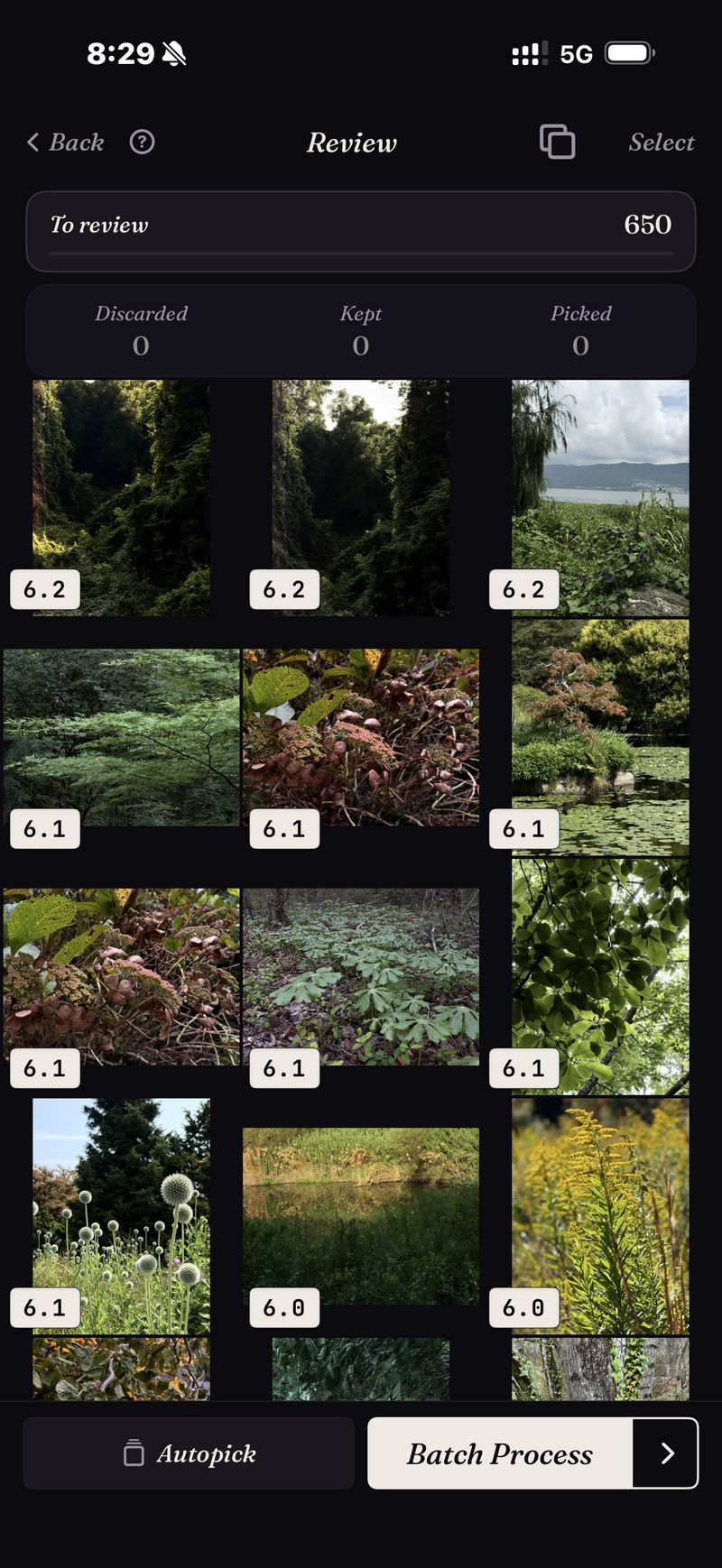
SpectraSort runs the same five steps with the expensive parts done before you look. Pick a slice, whether that's a Scene, a time range or a subject search, and it comes back ranked with near-identicals already stacked.
Then review: swipe right to pick, down to keep, left to let go, or let Autopick file everything by score and just skim the result. Stacked similars sit on one wheel, so a burst takes one decision.
Batch Actions finishes the slice in one screen: picks to an album or the share sheet, the rest cleared through the system dialog.
Details that keep it safe
A down-swipe just keeps the photo; declining to pick something never deletes it. Deletions happen only in Batch Actions, go through the system confirmation dialog, and land in iOS's Recently Deleted album — recoverable for 30 days, or cleared the moment you empty it. The ranking itself runs on your iPhone's Neural Engine, so nothing is uploaded.
- The last word is still yours. The ranking judges every frame and Autopick can file them all by score; what actually happens to them waits for your tap.
- iPhone only, iOS 18.5 or later. No iPad, Android or desktop version.
- The very first index of a big library takes some time. After that it's automatic — new photos are indexed as they appear, so you don't wait again.
- Deleted photos go through iOS's own trash: they land in Recently Deleted, and the storage comes back the moment you empty that album there — or automatically after 30 days. Each Delete in SpectraSort shows the storage it frees before you confirm.
Five free actions a week. Pay once for unlimited.
Five free actions a week, with no account and no credit card. Pay $19.99 once for unlimited actions. No subscription, ever. Built by an indie dev who uses it daily.
Download on the App Store